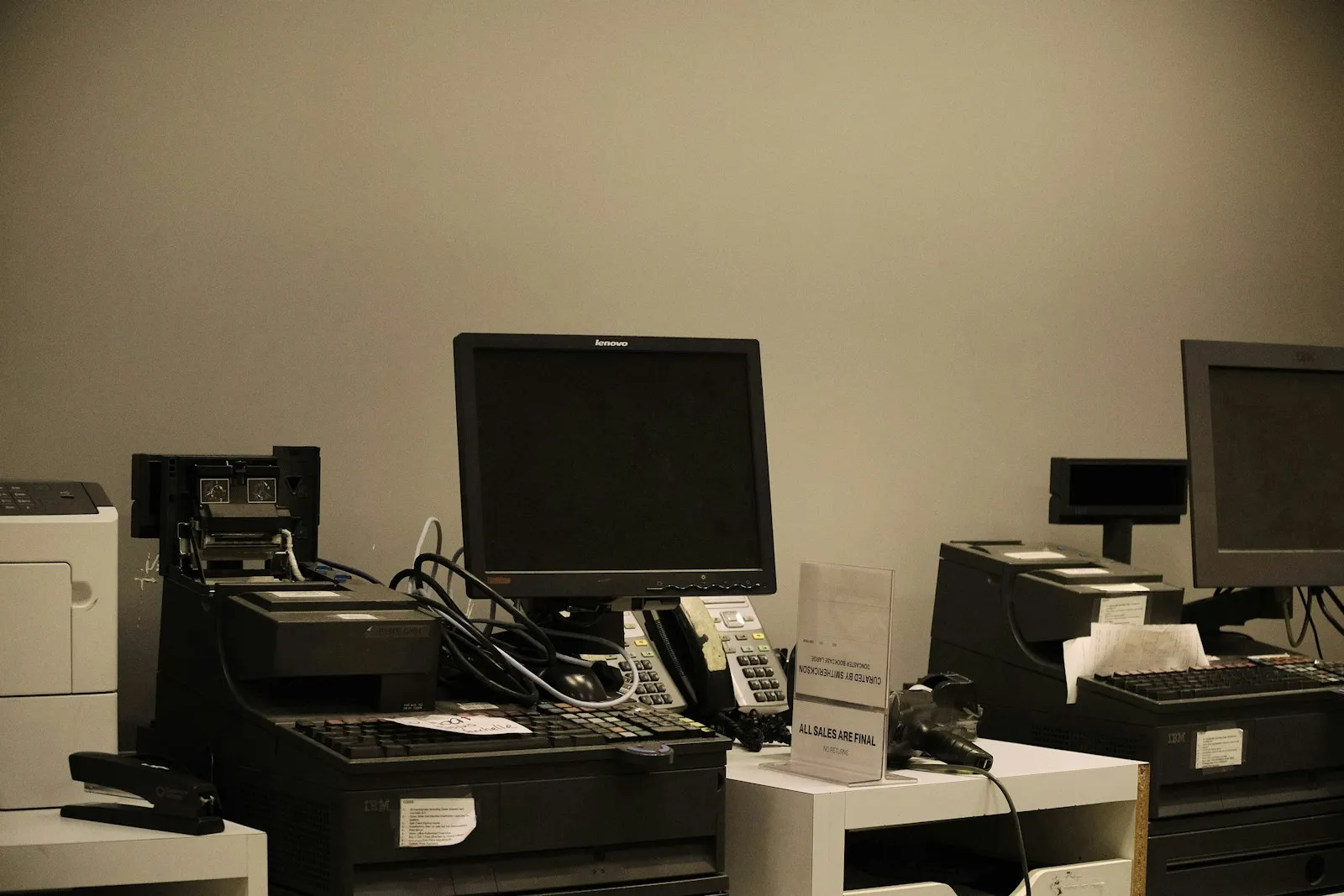
The computer most likely to cause trouble in your office is the one everyone says “still works fine.” It might be the front desk PC or the machine in the back room, and it might still be on Windows 10, which reached end of support on October 14, 2025. Machines like that only get security fixes if the organization enrolled them in Microsoft’s paid Extended Security Updates program. An IT refresh plan decides ahead of time when each device gets replaced and how you’ll pay for it, so that machine never becomes the weakest point on your network.
Key takeaways
- A refresh plan sets when each device will be replaced, ahead of time. That lets you budget for upgrades before a failure forces one.
- A device that can no longer get security updates is a risk, however well it still runs.
- Begin with an up-to-date list of every device, showing its purchase date, warranty date and who uses it.
- Refurbished equipment can work if you check it first. Whatever you retire, erase it and keep a record that you did.
Build your IT refresh plan in six steps
- Take inventory of every device: type, model, serial number, purchase and warranty dates, operating system and support status, who uses it, and its repair history.
- Flag anything unsupported or close to it and put those first.
- Set a computer replacement cycle by device type.
- Match the plan to the organization. Hiring, a move, new software or a shift to the cloud all change what you need.
- Choose how to pay, and set the budget by year with a small reserve for surprises.
- Review twice a year for failures, growth and vendor end-of-support dates.
A spreadsheet works for a small office, and a managed IT provider’s monitoring tools should produce most of the inventory automatically. The first control in the CIS Critical Security Controls is exactly this: actively inventory and track every device connected to your environment. The inventory also catches forgotten devices, such as an old PC still connected to the network in a storage room.
How long equipment should last
The cycle we recommend to every client is PCs every three to four years, servers at five, and firewalls at three to five. Between scheduled dates, these signs mean a device is due early:

- It can’t run a supported operating system. Windows 11, for example, requires TPM 2.0 and UEFI firmware with Secure Boot, and many older PCs don’t qualify.
- It is slow even after cleanup, or freezes and crashes often.
- The battery needs charging several times a day. A swollen battery is a safety hazard, so stop using the device and get it looked at.
- Storage is always full.
- Repairs would cost close to a replacement.
- The warranty and vendor support have ended, which usually means no more firmware fixes.
Windows 10 machines still in use
Windows 10 PCs keep working after end of support, but they get no security fixes unless they are enrolled in Extended Security Updates (ESU). For business devices, ESU is bought one year at a time, and it is cumulative: join in year two and you pay for year one as well. Year one ended October 13, 2026, year two ends October 12, 2027, and the program ends completely on October 10, 2028. Microsoft will keep providing security updates for Microsoft 365 Apps on Windows 10 until October 10, 2028, and describes that as help during the move to Windows 11.
We moved most of our clients to Windows 11 and replaced the machines that couldn’t run it. Treat ESU as a bridge: if a machine can run Windows 11, upgrade it, and if it can’t, give it a firm replacement date. Our Windows 10 guide covers the options in detail.
Three ways to pay
Replacing equipment on schedule is easier when the payment method fits your cash flow. We offer all three common options:
- Outright purchase, usually the lowest cost over the life of the equipment and possibly deductible under Section 179.
- Financing through a third-party lender, for hardware you will own while spreading the cost.
- A hardware subscription, where we own the equipment and replacement is built into the agreement.
The right choice often differs by device, so many of our clients end up with a mix. Our guide to hardware as a service compares the three side by side. Ask your accountant how each affects taxes and cash flow before you decide.
Refurbished and used equipment: the trade-offs
Buying used or refurbished hardware can stretch a budget, and keeping working equipment in service longer is the more sustainable choice. It comes with trade-offs:
- Check remaining support life first. A used laptop that can’t run Windows 11, or a firewall the manufacturer no longer updates, is a short-term purchase at best.
- Prefer business-class models from a reputable refurbisher that offers a warranty.
- Expect a shorter service life, and set its replacement date the day it arrives.
- Check battery and storage health, and update the firmware before use.
- Wipe it and reinstall the operating system before it joins your network, then enroll it in management like any new machine.
Refurbished equipment works best in lower-risk roles, such as a spare or a training room PC. For machines that handle client, patient or financial data, the support timeline matters more than the savings.
Retire devices responsibly
Every retired laptop, server, copier and firewall holds data. Before anything leaves the building:
- Wipe or destroy the storage using a recognized standard, and keep the record.
- Remove the device from accounts, licensing and management tools.
- Update the inventory.
- Send it to an electronics recycler that documents what happens to each device, or donate it only after the wipe is confirmed.
If you keep client, patient or financial records, that record belongs in your compliance file. Lifecycle management tracks each device from purchase through disposal.
Common mistakes
- Replacing everything at once instead of spreading replacements across years.
- Waiting for failures, which means paying whatever is in stock with no time to set the device up properly.
- Forgetting network gear, which ages out of updates just like computers.
- Ordering too late. Plan a quarter or two ahead so new devices can be set up, secured and tested before the old ones retire.
Start by counting how many devices in your office are past their support date. Book an intro call and we’ll help you sketch a replacement schedule as part of our managed IT services. As a Microsoft CSP partner, we can also handle licensing as devices change.
FAQ
Frequently asked questions
How often should a small business replace computers?
We recommend PCs every three to four years, adjusted for support status, warranty, performance and how heavily each device is used.
Is it worth repairing an old laptop?
If the repair costs close to a replacement, or the device is near the end of its support life, replacing it is usually the better choice.
Sources: Microsoft Learn, Lifecycle FAQ: Extended Security Updates; Microsoft Learn, Extended Security Updates program for Windows 10; Microsoft Learn, Windows 10 end of support and Microsoft 365 Apps; Microsoft, Windows 11 specifications; CIS Control 1: Inventory and Control of Enterprise Assets.