
An email lands in a staff member’s inbox saying their Microsoft 365 password expires today. There’s no link to hover over, just a QR code and the words “scan with your phone to keep access.” They scan it, type their password into a page that looks exactly like the Microsoft sign-in screen, and go back to work. That is quishing, short for QR code phishing, and the attacker now has their credentials.
We have seen QR code phishing at our clients. It works because it skips the link checks on the work computer and moves the decision to a phone, where the web address is small, easy to miss and often outside the company’s security tools.
Talk to an advisor
Ask about your own setup.
We ask what you’re trying to accomplish and tell you what we’d look at first. It costs nothing to talk, and no price comes up on this call.
What is QR code phishing?
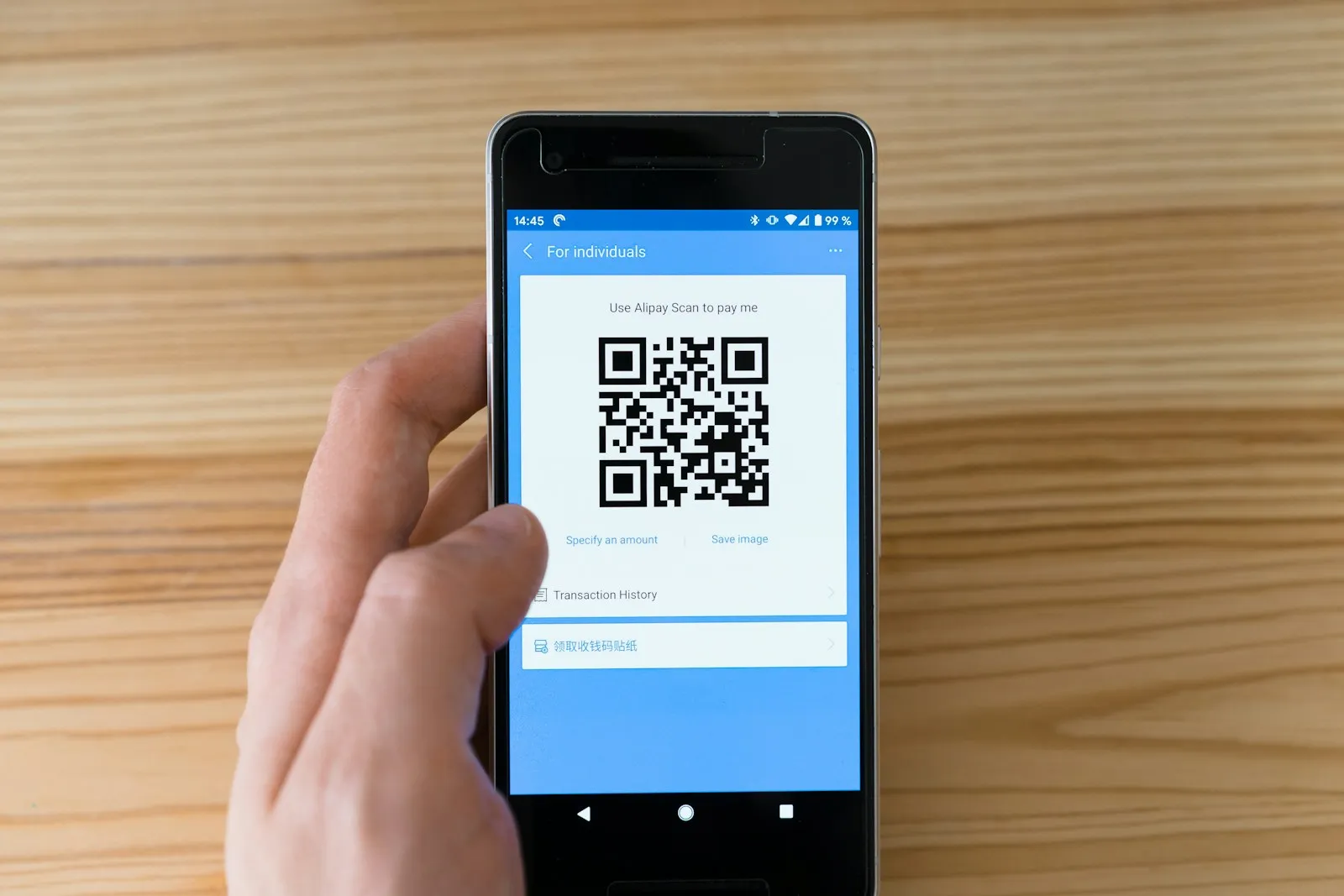
QR code phishing is a scam where the malicious link is hidden inside a QR code instead of written out as text. A QR code is just a web link in picture form. Microsoft describes the typical version: the code is embedded in an image, PDF or Word document, the message asks you to scan it with a mobile device, and the code opens a page built to steal your sign-in details.
The FTC warns about the same tactic in everyday life. Scammers have covered the real QR codes on parking meters with their own, and they send codes by text or email with an urgent story attached so you scan before you think.
Where malicious QR codes show up
The common thread is urgency. The message wants you to scan now and check later. Watch for codes in:
- Emails with fake password expiry notices, shared document alerts, voicemail notifications, payroll or benefits updates and MFA “re-enrollment” requests.
- PDF invoices or contracts with a code to “view the full document” or “sign electronically.”
- Text messages about missed deliveries, account problems and suspicious activity, which the FTC lists among the most common lures.
- Stickers placed over legitimate codes on parking meters, restaurant tables, flyers and posters.
- Printed letters or package inserts that ask you to scan to confirm details or claim something.
For an organization, the prize is usually a work sign-in. One stolen Microsoft 365 password can open a mailbox full of client files, invoices and patient or financial records. Attackers often use that mailbox to send invoices or payment change requests to your clients, which turns one scan into a much bigger problem, and for firms that keep patient or financial records possibly a reportable breach.
Why quishing gets past security tools
- The link is an image. Older filters looked for text links. Microsoft added QR code detection to the built-in protection for Microsoft 365 mailboxes in late 2023, but not every email system does this, and codes inside attachments can still slip through.
- The scan happens on a phone. Personal phones often have none of the company’s web filtering or endpoint protection, and many aren’t managed at all.
- The address is hard to read. On a small screen, a lookalike domain or a link shortener is easy to miss.
Attackers are clearly comfortable on phones. Verizon’s 2026 Data Breach Investigations Report found that phishers are now having more success targeting people through voice calls and text messages than through email.
How to scan QR codes safely
- Ask whether you expected it. Don’t scan a QR code in an email or text you weren’t expecting, especially one that urges you to act right away. That is the FTC’s first piece of advice.
- Preview the address before you open it. Most phone cameras show the web address first. Look for misspellings, swapped letters, odd domain endings or link shorteners.
- Never sign in from a QR code. If a message says your Microsoft 365, bank or payroll account needs attention, open the app or type the address you already know.
- Check physical codes for stickers placed over the original. If in doubt, use the official app or pay another way.
- Install apps only from the official app store, never from a QR code you can’t verify.
- Keep your phone updated and use multi-factor authentication on your accounts, as the FTC recommends.
What to put in place at the office
Training helps, but people will still scan things. These controls limit what an attacker can do with a stolen password:
- Email filtering that inspects QR codes in message bodies and attachments and quarantines suspicious messages before they reach staff.
- Phishing-resistant MFA. Passkeys and similar methods don’t work on a fake sign-in page, so a stolen password alone isn’t enough.
- Conditional access in Microsoft 365, so sign-ins from unmanaged devices or unusual locations are blocked or challenged.
- Mobile device management for phones that access company email and files.
- Phishing simulations that include QR codes, so staff practice spotting them before a real one arrives.
- A simple way to report suspicious messages, with no blame for people who report a mistake quickly.
Phones are the weak spot, and how much control you want over them is a business decision. Our clients answer it differently: some protect company apps on personal phones, some fully enroll the device, and some don’t allow personal phones for work at all. Our BYOD policy guide covers the trade-offs. If you’re on Microsoft 365, many of these controls already come with your licenses and just need to be turned on and tuned, which our Microsoft 365 services cover.
If someone already scanned and signed in
- Change the password right away from a device you trust.
- Tell IT, so active sessions can be signed out.
- Check the account for new forwarding rules or new MFA methods.
- Watch for messages sent from the account to clients, since a stolen mailbox is often used to send fake invoices.
Speed matters more than embarrassment here. QR codes are one of several new lures, and our post on how AI is changing phishing covers the rest.
Your staff will keep scanning QR codes, so the settings behind them have to carry the load. Book a 15-minute call with our cybersecurity team to check how yours would hold up.
Frequently asked questions
What is quishing?
Quishing is phishing that hides the malicious link inside a QR code. The code usually arrives in an email, PDF or text with an urgent story, such as an expiring password, and opens a fake sign-in or payment page on your phone. We’ve seen it at our clients, and the usual target is a Microsoft 365 password.
How do you prevent quishing?
Don’t scan codes in messages you weren’t expecting, preview the web address before opening it, and never sign in to an account from a QR code. At the office, use email filtering that reads QR codes, phishing-resistant MFA, and conditional access that challenges sign-ins from unmanaged phones. Phishing simulations that include QR codes give staff practice before a real one arrives.
Sources
- FTC Consumer Alert, Scammers hide harmful links in QR codes to steal your information, December 2023
- Microsoft Learn, Phishing trends and techniques: QR code phishing
- Microsoft Learn, What’s new in Microsoft Defender for Office 365 (December 2023)
- Help Net Security, Verizon 2026 DBIR findings, May 2026

Next step
Let us handle this for you.
Email sign-ins watched, fake email rejected, staff phishing tests and a security operations center.
- 15 minutes
Tell us which question brought you here and how your office runs.
We’ll tell you how it applies to you and what we’d look at first.
If we’re not the right fit, we’ll say so.
 15 minutes



