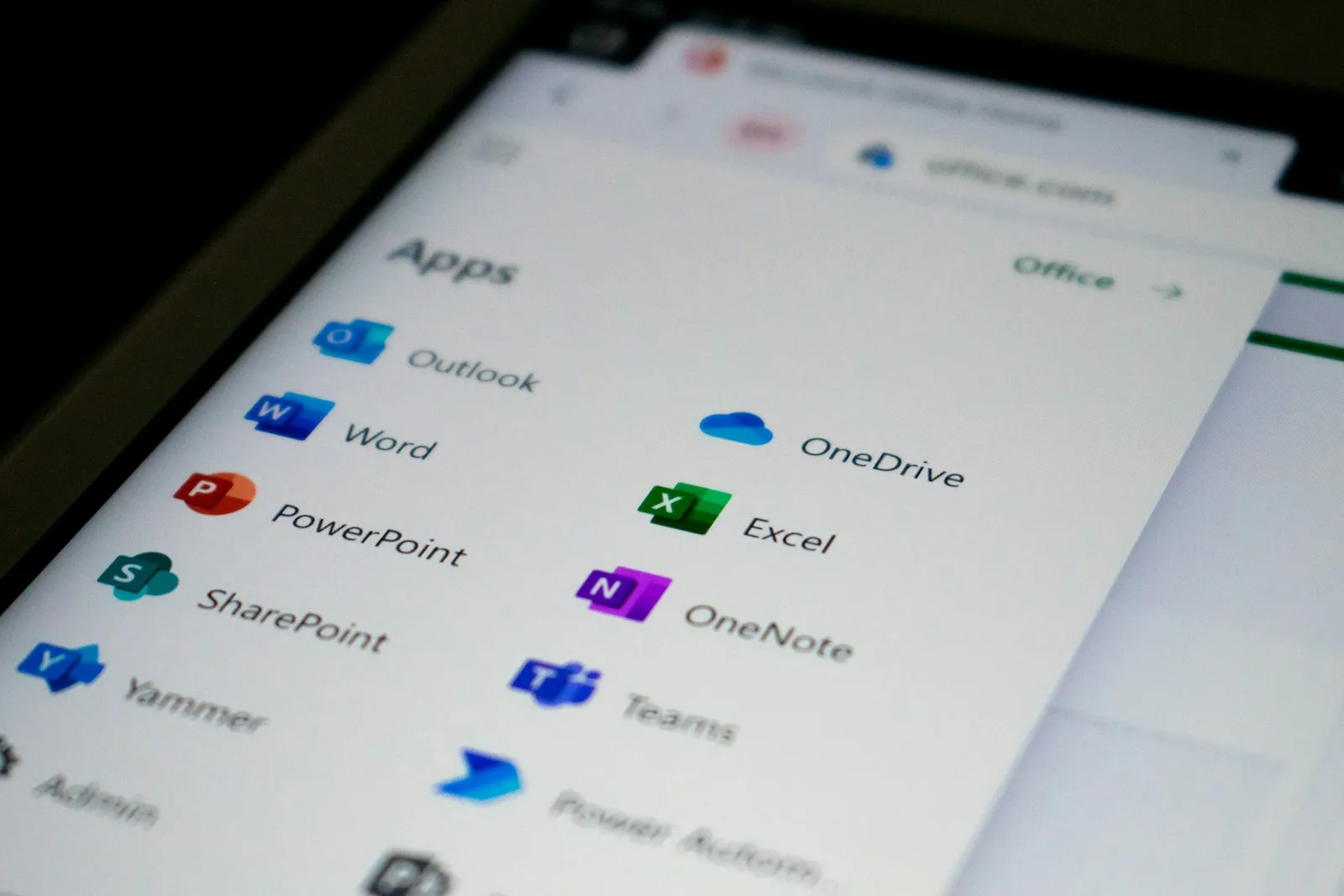
In the Microsoft 365 tenants we review, licenses are often underused. Staff open Outlook, Word and Excel the same way they did years ago, while features that would save them time, or keep client data safer, sit one click away. These ten Microsoft 365 tips and tricks are the ones we would teach a team first.
Microsoft also changes the apps constantly. Copilot Chat now sits inside Outlook and Teams, a long-requested paste shortcut finally arrived, and some older tips no longer apply. Everything below reflects how the apps work in 2026.
Use the AI you already have
1. Use Copilot Chat with your work account
Copilot Chat is included with Microsoft 365 and works in the Copilot app, Edge, Outlook and Teams. When staff sign in with their work account, Microsoft says prompts and responses get enterprise data protection and aren’t used to train its models. Look for the green shield and the “Work” label. For drafting, summarizing and rewriting, that makes it a far safer choice than a personal ChatGPT account.
2. Ask Outlook about your inbox
Since July 2026, Copilot Chat in Outlook can look across your inbox, calendar and meetings without a paid Copilot license. Ask it to list follow-ups you owe from this week’s email, or to summarize a long thread before you reply. Read what it produces before anything goes to a client.
You may also see Copilot inside Word, Excel and PowerPoint without a paid license. Microsoft labels that experience “Microsoft 365 Copilot (Basic)”: it can draft and summarize documents, suggest Excel formulas and build slides, with standard rather than priority access, and what appears depends on your plan and tenant settings. Users with the paid add-on, or one of the Business with Copilot plans Microsoft launched in July 2026, see the Premium label and get the full experience.
Decide which AI tools are approved and what data never goes into any of them. Our post on shadow AI explains why, and our AI services page covers safe rollouts.
Microsoft 365 tips and tricks for everyday work
These four save a few minutes each, many times a week.

3. Search for commands
Press Alt+Q (or click the search box at the top of Word, Excel, PowerPoint or Outlook on Windows) and type what you want to do, such as “margins” or “track changes.” It also finds recent files, people you work with and help articles.
4. Paste without the formatting
Ctrl+Shift+V now pastes text only in Word, Outlook, Teams and OneNote, so copied text picks up your document’s style. It works differently in Excel, and PowerPoint still uses it for pasting formatting.
5. Stop retyping the same email
The new Outlook for Windows has mail templates (Home > New > Mail from template). Office directions, onboarding instructions and standard replies are good candidates.
6. Collect information with Microsoft Forms
Forms builds surveys, sign-up sheets and intake forms in minutes. Choose Open in Excel on the Responses tab and new responses sync into the workbook, ready to sort or chart.
Share and protect files the right way
7. Share links, and pick the right kind
When you share from OneDrive or SharePoint, everyone works on one copy and you can stop sharing later. Use “Specific people” for anything sensitive. “Anyone” links work for whoever gets hold of them, including people the email was forwarded to.
8. Back up your Desktop and Documents to OneDrive
OneDrive’s folder backup (Microsoft calls it Known Folder Move) syncs Desktop, Documents and Pictures to the cloud, so a lost, stolen or dead laptop doesn’t take the files with it. Your IT team can turn it on for everyone through policy.
9. Report suspicious email with one click
The built-in Report button in Outlook lets staff report phishing or junk. Depending on your settings, reported messages go to a reporting mailbox, to Microsoft or both, and phishing reports are removed from the inbox. It works in classic Outlook, new Outlook, Outlook on the web and the mobile apps. Microsoft has put the older Report Message and Report Phishing add-ins into maintenance mode, so this button is the one to teach. For our clients it pairs with year-round phishing simulations: a click on a simulated phish triggers a short lesson right away, and the client sees the results.
Sharing defaults, OneDrive backup and the Report button work best as part of a planned Microsoft 365 security setup that includes MFA. As a Microsoft CSP partner, we help clients get that value from the licenses they already pay for. See our cybersecurity services.
Present with more confidence
10. Rehearse with Speaker Coach
In PowerPoint, choose Slide Show > Rehearse with Coach. Speaker Coach listens while you practice and reports on pacing, filler words like “um,” whether you are reading straight off the slides, and wordy phrasing. It is available in PowerPoint for the web, Windows, Mac and mobile.
While you build the deck, Insert > Pictures > Stock Images offers royalty-free images, icons and illustrations to Microsoft 365 subscribers. Microsoft’s terms let you use them inside Microsoft 365 documents and files you create from them, such as PDFs. Standalone use on your website or in other tools is off limits.
Make the tips stick
A list only helps if people use it. Show two or three tips a month in a staff meeting instead of sending one long email. Set the safe option as the default, for example by making “Specific people” or “People in your organization” the default sharing link type in the SharePoint admin center. Check your licenses, since some features depend on your plan. And review once a quarter, because Microsoft renames and moves features often.
For ongoing learning, our clients get training through our client portal, and we offer paid classroom training for teams that learn better in a room together. Our post on targeted IT training covers how to plan it, and what is Microsoft 365 explains what each plan includes.
Teach two of these first: sharing links and the Report button. They take minutes and close two easy gaps for client data. For help turning the rest into habits, book an intro call or look at our Microsoft 365 services.
FAQ
Frequently asked questions
Is Copilot Chat free with Microsoft 365?
Copilot Chat is included with Microsoft 365 business and enterprise subscriptions at no extra cost. A separate Microsoft 365 Copilot license, or the newer Business with Copilot plans, adds priority access and grounding in more of your work data.
Does OneDrive folder backup replace a real backup?
No. It protects files if a laptop is lost or fails, but deletions and ransomware can sync too. A separate Microsoft 365 backup lets you restore to an earlier point.
Sources: Microsoft Learn: Overview of Microsoft Copilot Chat; Microsoft Learn: Manage Microsoft Copilot Chat; Microsoft Learn: Copilot Chat privacy and protections; Microsoft Learn: Enterprise data protection in Microsoft Copilot and Copilot Chat; Microsoft Learn: Microsoft 365 Copilot release notes, July 2026; Microsoft Learn: 2025 Microsoft 365 Copilot release notes (Copilot Chat included with Microsoft 365); Microsoft Support: Find what you need with search in Microsoft 365 apps; Office Watch: Ctrl+Shift+V in Microsoft 365, 2026; Slipstick Systems: Mail templates in Outlook for Windows and web; Microsoft Support: Microsoft Forms and Excel workbooks; Microsoft Learn: How shareable links work in OneDrive and SharePoint; Microsoft Learn: Manage sharing settings for SharePoint and OneDrive; Microsoft Learn: Redirect and move Windows known folders to OneDrive; Microsoft Learn: Report phishing and suspicious emails in Outlook; Microsoft Learn: Transition from the Report Message or Report Phishing add-ins; Microsoft Support: Rehearse your slide show with Speaker Coach; Microsoft Support: Insert images, icons, and more in Microsoft 365; Microsoft Support: What am I allowed to use premium creative content for?; Microsoft, Introducing Microsoft 365 Business with Copilot, May 2026.