
Most small office networks are built one device at a time: a consumer router from move-in day, a switch under a desk, a Wi-Fi extender for the back office, cameras plugged in wherever a port was free. It works until the phones start dropping calls, Wi-Fi dies in the conference room, or someone realizes the guest Wi-Fi password also reaches the server. A planned network installation avoids most of that and is far easier to secure.
Whether you’re moving, expanding or fixing a network that grew by accident, these are the steps a solid small office network setup follows, and what to ask whoever builds it.
Step 1: walk the site and write a design
Planning starts with the space and the people in it. A good installer walks the site and asks:
- How many people work here now, and how many in three years?
- Where will desks, printers, conference rooms and cameras go?
- Do you use VoIP phones, video calls or large files that need steady bandwidth?
- Which systems must keep running during an internet or power outage?
- Do you handle patient, financial or legal client data that needs extra separation?
The answers become a written design: what goes where, how it connects, and what it costs. Build in room to grow. Extra cable runs pulled while walls are open cost far less than adding them later, and a switch with spare ports saves an upgrade when you hire.
Step 2: get the cabling right
Cabling outlasts everything else in the network, so it deserves the most care. Structured cabling runs from a central network closet to desks, access points, cameras and printers. Every run should be labeled at both ends, tested after installation, and recorded on a port map.
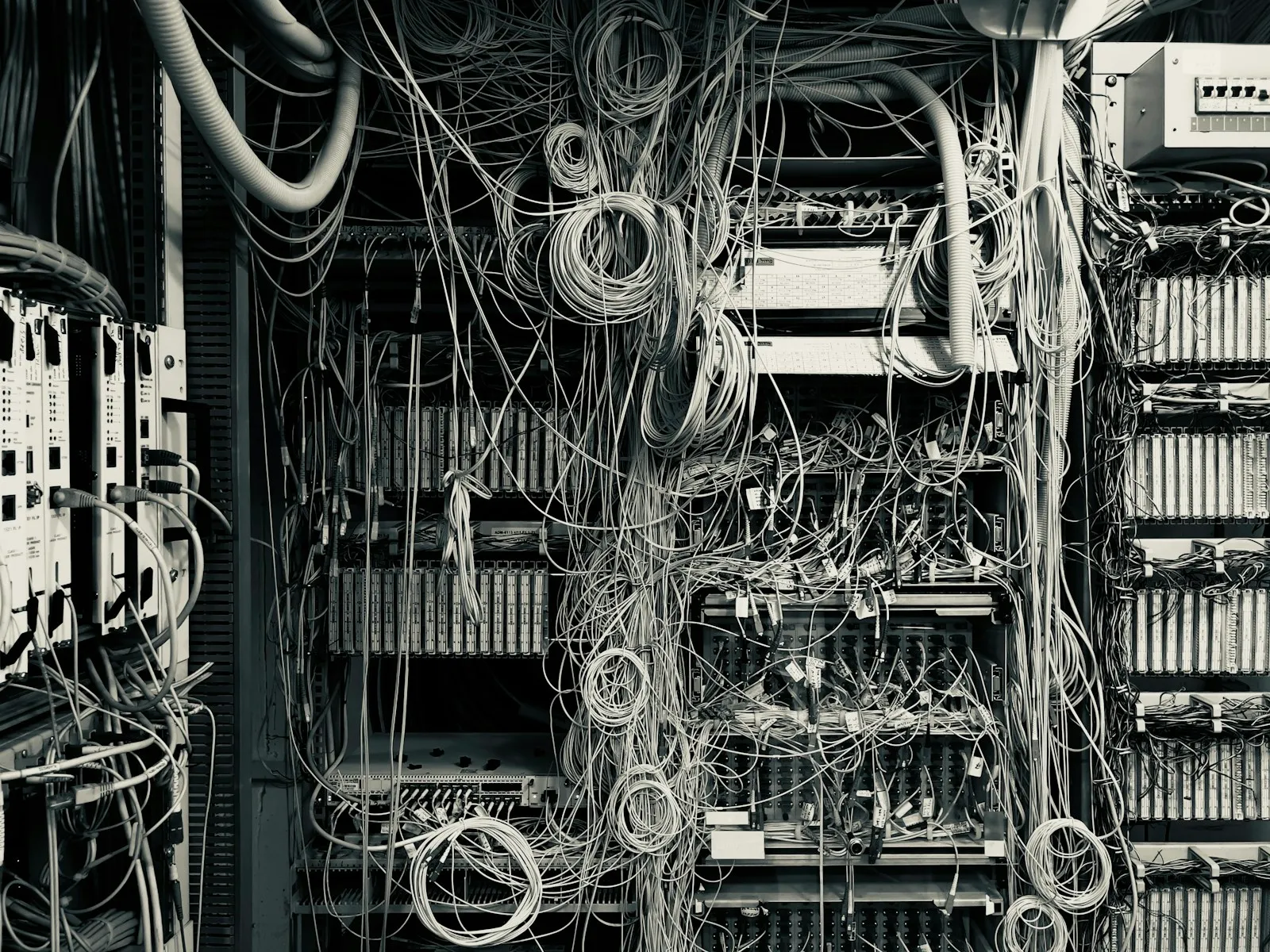
When a phone stops working two years from now, that map is the difference between a five-minute fix and an afternoon tracing wires through the ceiling. Ask for the test results and the port map at handoff. On our projects, cabling is done by a subcontracted cabling partner, and we handle the network side.
Step 3: choose business-grade equipment
- A network closet or rack with room for switches, the firewall, patch panels and battery backup.
- Business-grade switches, often with Power over Ethernet to run phones, access points and cameras.
- A managed firewall at the edge, and ideally a second internet connection from a different provider with automatic failover.
- Centrally managed Wi-Fi access points placed for coverage and the number of people using them.
Power matters as much as data. Put the firewall, core switches and phone system on a battery backup sized to ride through short outages and shut down cleanly during long ones. If cameras and phones draw power from the switches, the battery has to carry them too. Our guide to UPS battery backups covers sizing.
Step 4: set up Wi-Fi for business
Consumer mesh kits and extenders are built for homes. Business Wi-Fi uses centrally managed access points placed according to a survey of the space, with enough capacity for everyone’s laptops and phones at once.
WPA3 is now mandatory for Wi-Fi CERTIFIED devices. The Wi-Fi Alliance notes that WPA3-Personal adds protection against password guessing, and WPA3-Enterprise supports stronger security for networks handling sensitive data. Use it wherever your devices support it.
- Give staff individual Wi-Fi logins where possible, so access ends when someone leaves.
- Put guests on their own network that reaches the internet and nothing else.
- Change the guest password on a schedule, and never share the staff network password with visitors.
Step 5: segment the network
On a flat network, every device can talk to every other device. If one camera or laptop is compromised, everything else is within reach. Segmentation splits the network into zones with rules between them: business computers and servers, VoIP phones, cameras and smart devices, printers, and guest Wi-Fi.
This follows Zero Trust thinking. NIST’s Zero Trust Architecture guidance describes moving away from granting trust based on where a device sits on the network, and our Zero Trust guide explains it in plain terms. For healthcare, financial and legal offices, segmentation also limits how far an incident can spread toward regulated data. If phone systems or video surveillance are part of the project, plan their segments from the start. We provide video surveillance for our clients, and it is part of the physical safeguards their compliance programs rely on.
Step 6: lock down the firewall and remote access
The firewall is the front door. Keep its firmware current, review its rules, close unused ports and watch its logs. Never expose remote desktop or file shares directly to the internet, because attackers scan for them constantly.
For people working from home or on the road, secure access tools that check the user, the device and the request before opening a specific application are safer than putting remote users on the whole office network. Require multifactor authentication on every remote connection. Our cybersecurity services page explains the layers we use.
Step 7: plan for life after network installation
Switches, firewalls and access points run software that needs security updates, and they eventually reach end of support. We plan firewall replacements every three to five years. After installation you need:
- 24/7 monitoring that alerts someone when a device goes offline or behaves oddly.
- Scheduled firmware updates, tested before rollout.
- Configuration backups so a failed device can be replaced quickly.
- Documentation updated whenever something changes.
Our post on network monitoring for professional services firms goes deeper on the ongoing side.
Common mistakes to avoid
- Buying equipment before anyone has walked the site.
- Accepting a cabling job without labels, test results or a port map.
- Running cameras, guests and business systems on one flat network.
- Leaving default admin passwords on the firewall or access points.
- Starting too late. Planning and ordering often take longer than the installation itself, so begin well before move-in.
A network is easiest to get right before the walls close and the furniture arrives. If a move or an expansion is coming, book a 20-minute call and we’ll talk through the design and how our managed IT services keep it running afterward.
Sources: Wi-Fi Alliance, Wi-Fi security (WPA3); NIST SP 800-207, Zero Trust Architecture.